> ## Documentation Index
> Fetch the complete documentation index at: https://docs.cortex-labs.ai/llms.txt
> Use this file to discover all available pages before exploring further.
# Your first task with Kato
> Describe your own goal, find a chat you can access and check the page Kato opens.
Use Kato to find your way into a task. You will describe your own goal, locate one of your chats and check the page Kato opens.
 ## Before you begin
Sign in and choose a task you can complete in Arc, such as checking a document or drafting a short brief. Use an existing chat you can read and note its exact title. If you have no chat yet, open **Chats** → **New chat**, select a permitted model and send a short description of your task. Note the resulting chat title.
Use only material you are authorised to share with the selected model and chat audience. No supplied example chat, dataset or Vantage workspace is needed.
Press **Command+J** on a Mac or **Ctrl+J** on Windows or Linux, or select Kato beside **Search** in the app's top bar.
See [Getting around Cortex](/getting-started/navigate-the-app) for other navigation controls.
Replace the bracketed text with your own details and send:
> I want to \[answer a question or draft an output] using \[my material] in Arc. Explain how a chat or chat project can help me and what I should check before starting. Do not create anything yet.
Check that the answer addresses your task and available product. Ask about an unclear term or missing input before continuing.
Send:
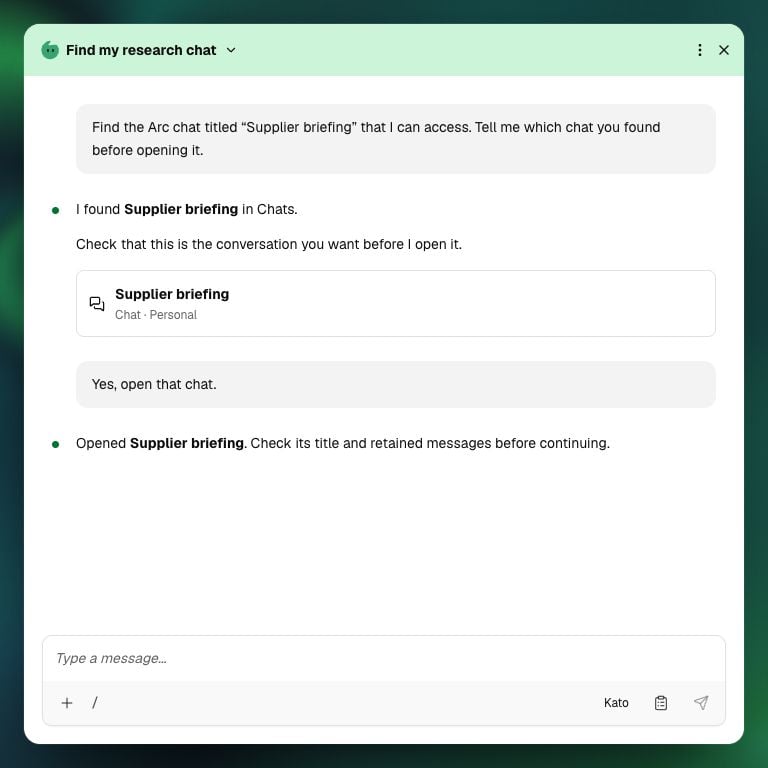
> Find the Arc chat titled \[exact chat title] that I can access. Tell me which chat you found before opening it.
Check the title. If several matches appear, identify the intended chat using its owner or resource identifier. If none appears, confirm the title and your access; a missing search result does not prove that the chat does not exist.
Ask Kato to open the identified chat. Check the destination's title, breadcrumb trail and retained messages against the chat you chose.
Kato's wording can vary. Success means the correct accessible chat is open, with the content you expected.
## Check the result
You should be able to describe your task, identify the resource and reopen it through Kato. The chat retains its context and permissions; opening or sharing it does not share its parent project.
Continue with [Research a question in an Arc chat](/arc/chats-and-research/research-a-question), then [save and export a chat artefact](/arc/create-and-share-artefacts/create-revise-export) when you have checked the content.
This documentation is built and hosted on [Mintlify](https://mintlify.com), a developer documentation platform.
## Before you begin
Sign in and choose a task you can complete in Arc, such as checking a document or drafting a short brief. Use an existing chat you can read and note its exact title. If you have no chat yet, open **Chats** → **New chat**, select a permitted model and send a short description of your task. Note the resulting chat title.
Use only material you are authorised to share with the selected model and chat audience. No supplied example chat, dataset or Vantage workspace is needed.
Press **Command+J** on a Mac or **Ctrl+J** on Windows or Linux, or select Kato beside **Search** in the app's top bar.
See [Getting around Cortex](/getting-started/navigate-the-app) for other navigation controls.
Replace the bracketed text with your own details and send:
> I want to \[answer a question or draft an output] using \[my material] in Arc. Explain how a chat or chat project can help me and what I should check before starting. Do not create anything yet.
Check that the answer addresses your task and available product. Ask about an unclear term or missing input before continuing.
Send:
> Find the Arc chat titled \[exact chat title] that I can access. Tell me which chat you found before opening it.
Check the title. If several matches appear, identify the intended chat using its owner or resource identifier. If none appears, confirm the title and your access; a missing search result does not prove that the chat does not exist.
Ask Kato to open the identified chat. Check the destination's title, breadcrumb trail and retained messages against the chat you chose.
Kato's wording can vary. Success means the correct accessible chat is open, with the content you expected.
## Check the result
You should be able to describe your task, identify the resource and reopen it through Kato. The chat retains its context and permissions; opening or sharing it does not share its parent project.
Continue with [Research a question in an Arc chat](/arc/chats-and-research/research-a-question), then [save and export a chat artefact](/arc/create-and-share-artefacts/create-revise-export) when you have checked the content.
This documentation is built and hosted on [Mintlify](https://mintlify.com), a developer documentation platform.