> ## Documentation Index
> Fetch the complete documentation index at: https://docs.cortex-labs.ai/llms.txt
> Use this file to discover all available pages before exploring further.
# Getting around Cortex
> Meet Kato and learn the shared controls for finding and starting work in Arc and Vantage.
Arc and Vantage share the same navigation controls. Use **Chats** for Arc conversations and projects, and **Workspaces** for Vantage investigations and shared data. This guide introduces Kato, the command palette, and the places you can go across Cortex.
## Meet Kato
 Kato is your assistant across Arc and Vantage. Ask a question, describe what you want to do, or give it a task in ordinary language.
Kato operates the platform from natural-language prompts: **build workflows**, **set up ingestion pipelines**, **create workspaces**, and move between tasks across the system. Press **Command+J (⌘J)** on a Mac or **Ctrl+J** on Windows or Linux to open Kato directly.
For example, ask:
* “Create a workspace for our Bristol transport investigation.”
* “Set up an ingestion pipeline for these sources.”
* “Build a workflow that turns the collected material into a weekly brief.”
Describe the outcome you want and include the workspace, sources, or other context Kato should use.
## Open the command palette with Command+K
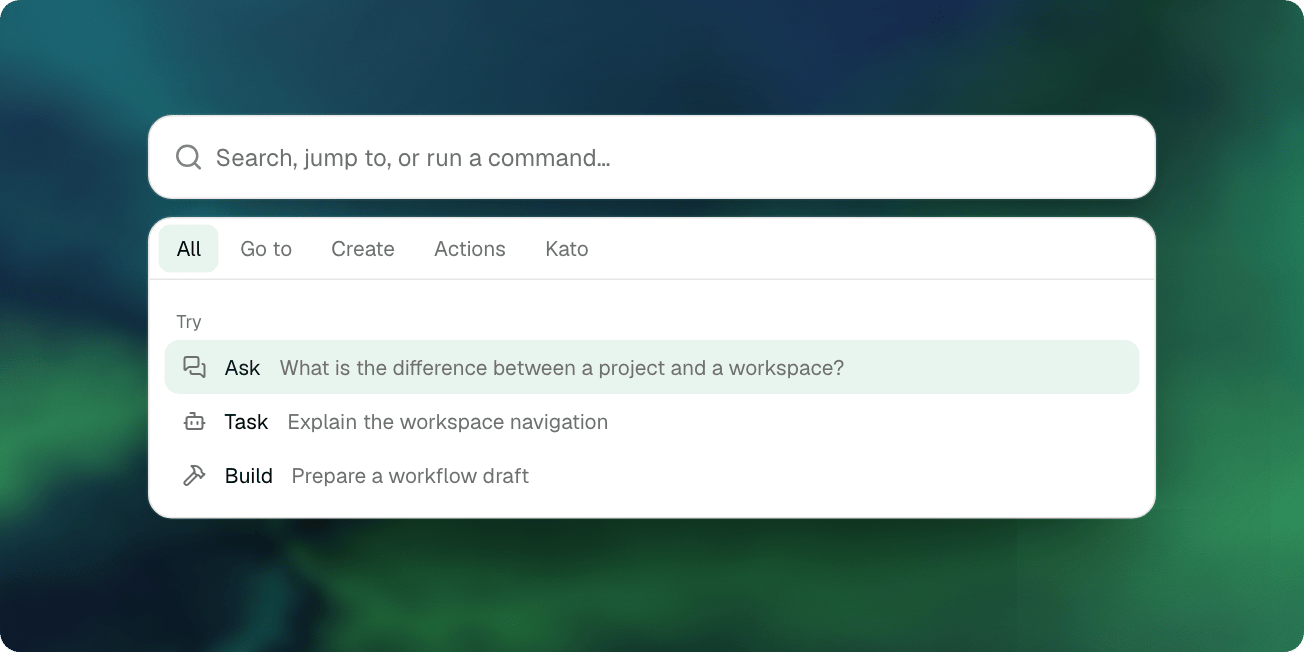
Press **⌘K** on a Mac or **Ctrl+K** on Windows or Linux. You can also select **Search or ask Kato** in the top bar.
The palette opens on **All**. Type a destination, an item name, or a command, then select the matching row.
Kato is your assistant across Arc and Vantage. Ask a question, describe what you want to do, or give it a task in ordinary language.
Kato operates the platform from natural-language prompts: **build workflows**, **set up ingestion pipelines**, **create workspaces**, and move between tasks across the system. Press **Command+J (⌘J)** on a Mac or **Ctrl+J** on Windows or Linux to open Kato directly.
For example, ask:
* “Create a workspace for our Bristol transport investigation.”
* “Set up an ingestion pipeline for these sources.”
* “Build a workflow that turns the collected material into a weekly brief.”
Describe the outcome you want and include the workspace, sources, or other context Kato should use.
## Open the command palette with Command+K
Press **⌘K** on a Mac or **Ctrl+K** on Windows or Linux. You can also select **Search or ask Kato** in the top bar.
The palette opens on **All**. Type a destination, an item name, or a command, then select the matching row.
 | Tab | Use it for |
| - | - |
| **All** | Search across the palette's available destinations, items, and commands. |
| **Go to** | Jump to a section, page, chat, workspace, or dataset. |
| **Create** | Find the creation actions available to you. Some actions ask for a workspace or another choice first. |
| **Actions** | Find commands relevant to the current page, plus settings such as account and theme controls. |
| **Kato** | Ask for product help and return to Kato conversations. |
With focus in the search field, **Tab** moves to the next palette tab and **Shift+Tab** moves to the previous one. Use the arrow keys to select a row and **Enter** to activate it. Press **⌘K** or **Ctrl+K** again to close the palette.
In a creation sequence, **Backspace** in an empty search field returns one step. Outside a sequence, it returns from a filtered tab to **All**.
### Jump to a page or return to earlier work
To open your workspace quickly:
1. Open the palette and select **Go to**.
2. Type at least two characters of its name, such as `Bristol`.
3. Select the matching workspace.
4. Check its name and the page you have opened before continuing.
The same search can find chats and datasets. Chat matches include titles and message content. Results are a convenient way back into work, not an exhaustive search of every artefact or piece of evidence.
Commands can depend on where you are. For example, a page within a particular workspace is offered when that workspace supplies the context. If the row you expected is missing, check your section, the selected tab, and your access.
### Ask Kato from the palette
The **Kato** tab also gives you a route into Kato conversations. Try a product question such as “What is the difference between a project and a workspace?” For natural-language tasks across the platform, see [Meet Kato](#meet-kato).
## Start from Home
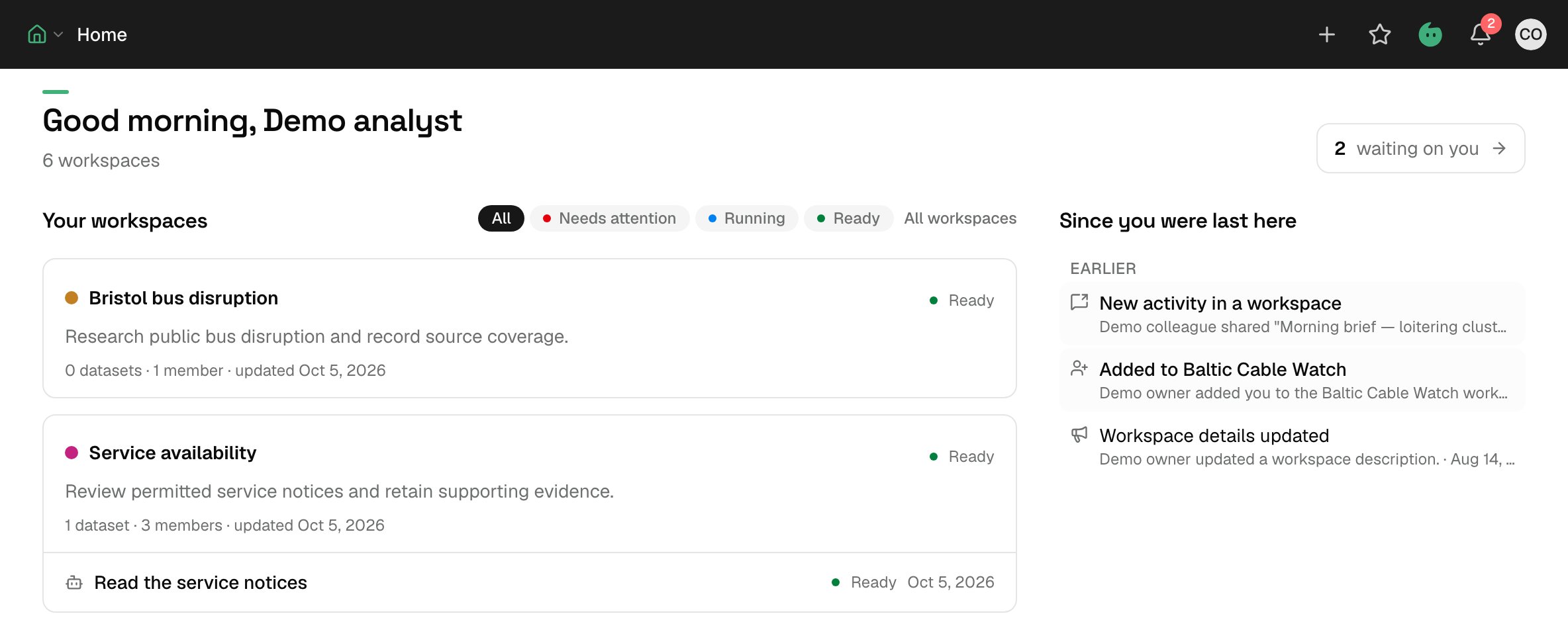
Choose **Home** in the section switcher to see an overview of your work.
With Vantage access, **Your workspaces** shows workspace cards and recent agent chats within them. Open a card to enter that workspace, or choose **All workspaces** for the fuller list. The status filters help you focus on rooms that need attention, are running, or are ready.
**Since you were last here** shows recent activity. An activity item can take you to the resource it concerns. The **waiting on you** control opens Review; its count is a cue to inspect the waiting work, rather than approval of its outcome.
Without Vantage access, Home shows activity without the workspace column. The content and destinations you see depend on your account and permissions.
| Tab | Use it for |
| - | - |
| **All** | Search across the palette's available destinations, items, and commands. |
| **Go to** | Jump to a section, page, chat, workspace, or dataset. |
| **Create** | Find the creation actions available to you. Some actions ask for a workspace or another choice first. |
| **Actions** | Find commands relevant to the current page, plus settings such as account and theme controls. |
| **Kato** | Ask for product help and return to Kato conversations. |
With focus in the search field, **Tab** moves to the next palette tab and **Shift+Tab** moves to the previous one. Use the arrow keys to select a row and **Enter** to activate it. Press **⌘K** or **Ctrl+K** again to close the palette.
In a creation sequence, **Backspace** in an empty search field returns one step. Outside a sequence, it returns from a filtered tab to **All**.
### Jump to a page or return to earlier work
To open your workspace quickly:
1. Open the palette and select **Go to**.
2. Type at least two characters of its name, such as `Bristol`.
3. Select the matching workspace.
4. Check its name and the page you have opened before continuing.
The same search can find chats and datasets. Chat matches include titles and message content. Results are a convenient way back into work, not an exhaustive search of every artefact or piece of evidence.
Commands can depend on where you are. For example, a page within a particular workspace is offered when that workspace supplies the context. If the row you expected is missing, check your section, the selected tab, and your access.
### Ask Kato from the palette
The **Kato** tab also gives you a route into Kato conversations. Try a product question such as “What is the difference between a project and a workspace?” For natural-language tasks across the platform, see [Meet Kato](#meet-kato).
## Start from Home
Choose **Home** in the section switcher to see an overview of your work.
With Vantage access, **Your workspaces** shows workspace cards and recent agent chats within them. Open a card to enter that workspace, or choose **All workspaces** for the fuller list. The status filters help you focus on rooms that need attention, are running, or are ready.
**Since you were last here** shows recent activity. An activity item can take you to the resource it concerns. The **waiting on you** control opens Review; its count is a cue to inspect the waiting work, rather than approval of its outcome.
Without Vantage access, Home shows activity without the workspace column. The content and destinations you see depend on your account and permissions.
 ## Use the app spindle to switch sections
The app spindle is the section switcher at the upper left. Its control is labelled **Switch section** and shows the current section's name and icon. On a page with a sidebar, look at the top of that sidebar; on an overview screen, look in the top bar.
Open it and choose a destination:
| Destination | Go here to… |
| - | - |
| **Home** | Reorient yourself and return to current work. |
| **Chats** | Work in Arc conversations, projects, and chat artefacts. |
| **Workspaces** | Open a Vantage workspace, then investigate or work with its data. |
| **Forge** | Work with reusable definitions such as prompts, skills, agents, and workflows. |
| **Review** | Inspect work waiting for a person and follow its context. |
Additional destinations, such as Console or Compliance, appear for the relevant roles. A visible destination does not grant access to every resource inside it.
Switching sections changes where you are working. It does not move chat context, project files, or datasets between Arc and Vantage. See [What carries over](/getting-started/what-carries-over) for those boundaries.
## Use the sidebar and breadcrumbs within a section
The sidebar gives you the destinations relevant to your current section. Overview screens can appear without a sidebar; opening a chat or workspace brings in its more detailed navigation.
In **Chats**, use **New chat**, **Projects**, and **Artefacts**, or return to a recent conversation.
Inside a Vantage workspace, first check the workspace name. Then use:
* **Summary** for its goal and details.
* **Explore** for workspace agent chats and investigations.
* **Collections** and **Datasets** for its organised data.
* **Workflow runs** and **Apps** for structured work.
* **Access** and **Settings** for the operations your permissions allow.
Other workspace entries include artefacts, alerts, and review waits. The destinations and actions you see depend on your role and resource access.
The breadcrumb trail in the top bar identifies the resource and page you have opened. Use its links to return to a parent. On a narrow screen, open the sidebar with its toggle; the breadcrumb trail and global controls may fold into menus.
## Recognise the shared controls
The top bar also gives you:
* **Create** for available creation actions.
* **Starred** for resources you have marked for quick return.
* The **notification bell** for activity and notifications.
* Your **account menu** for account controls.
On smaller screens, some controls move into an overflow menu. The command palette remains another route to available destinations and actions.
## Try a short navigation loop
Open **Chats**, return to **Home**, then use the palette's **Go to** tab to open a permitted workspace. Confirm the workspace name and find **Summary**, **Explore**, and **Collections**.
You should now be able to identify your current section and resource, return to a parent, and use the palette to reach existing work.
Continue with [Your first task in Arc or Vantage](/quickstart), or [Create a workspace around a goal](/vantage/set-up-a-workspace/create-workspace) if you need to prepare the Vantage starting point.
This documentation is built and hosted on [Mintlify](https://mintlify.com), a developer documentation platform.
## Use the app spindle to switch sections
The app spindle is the section switcher at the upper left. Its control is labelled **Switch section** and shows the current section's name and icon. On a page with a sidebar, look at the top of that sidebar; on an overview screen, look in the top bar.
Open it and choose a destination:
| Destination | Go here to… |
| - | - |
| **Home** | Reorient yourself and return to current work. |
| **Chats** | Work in Arc conversations, projects, and chat artefacts. |
| **Workspaces** | Open a Vantage workspace, then investigate or work with its data. |
| **Forge** | Work with reusable definitions such as prompts, skills, agents, and workflows. |
| **Review** | Inspect work waiting for a person and follow its context. |
Additional destinations, such as Console or Compliance, appear for the relevant roles. A visible destination does not grant access to every resource inside it.
Switching sections changes where you are working. It does not move chat context, project files, or datasets between Arc and Vantage. See [What carries over](/getting-started/what-carries-over) for those boundaries.
## Use the sidebar and breadcrumbs within a section
The sidebar gives you the destinations relevant to your current section. Overview screens can appear without a sidebar; opening a chat or workspace brings in its more detailed navigation.
In **Chats**, use **New chat**, **Projects**, and **Artefacts**, or return to a recent conversation.
Inside a Vantage workspace, first check the workspace name. Then use:
* **Summary** for its goal and details.
* **Explore** for workspace agent chats and investigations.
* **Collections** and **Datasets** for its organised data.
* **Workflow runs** and **Apps** for structured work.
* **Access** and **Settings** for the operations your permissions allow.
Other workspace entries include artefacts, alerts, and review waits. The destinations and actions you see depend on your role and resource access.
The breadcrumb trail in the top bar identifies the resource and page you have opened. Use its links to return to a parent. On a narrow screen, open the sidebar with its toggle; the breadcrumb trail and global controls may fold into menus.
## Recognise the shared controls
The top bar also gives you:
* **Create** for available creation actions.
* **Starred** for resources you have marked for quick return.
* The **notification bell** for activity and notifications.
* Your **account menu** for account controls.
On smaller screens, some controls move into an overflow menu. The command palette remains another route to available destinations and actions.
## Try a short navigation loop
Open **Chats**, return to **Home**, then use the palette's **Go to** tab to open a permitted workspace. Confirm the workspace name and find **Summary**, **Explore**, and **Collections**.
You should now be able to identify your current section and resource, return to a parent, and use the palette to reach existing work.
Continue with [Your first task in Arc or Vantage](/quickstart), or [Create a workspace around a goal](/vantage/set-up-a-workspace/create-workspace) if you need to prepare the Vantage starting point.
This documentation is built and hosted on [Mintlify](https://mintlify.com), a developer documentation platform.